Add an event calendar
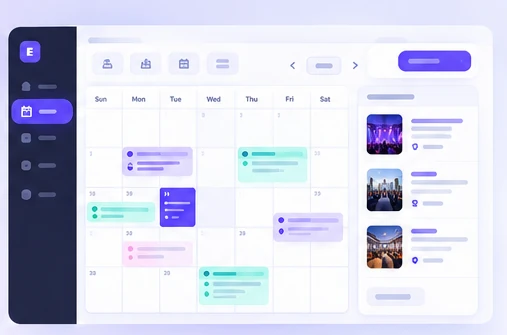
Create a page such as “Calendar” and insert:
[evqra_event_calendar]The Core shortcode catalog lists month, week, day, list, photo and map-style views, depending on enabled settings. Check the options supported by your exact Core version before adding attributes.
Test the calendar
- Publish at least a few test events with different dates and categories.
- Open the calendar page and try each available view.
- Navigate forward and backward through the date range.
- Open an event from the calendar and confirm it leads to the correct event.
- Check mobile layout, keyboard focus and browser console errors.
Calendar exports
To display export links for a particular event, use:
[evqra_export_buttons id="123"]Replace 123 with a real published event ID. Test the iCalendar download and Google Calendar link. Export links do not imply that a two-way calendar synchronization extension is installed.
Map view notes
Map displays may require a compatible map configuration and external provider. Restrict API keys, use click-to-load behavior where available, and update your privacy disclosures.